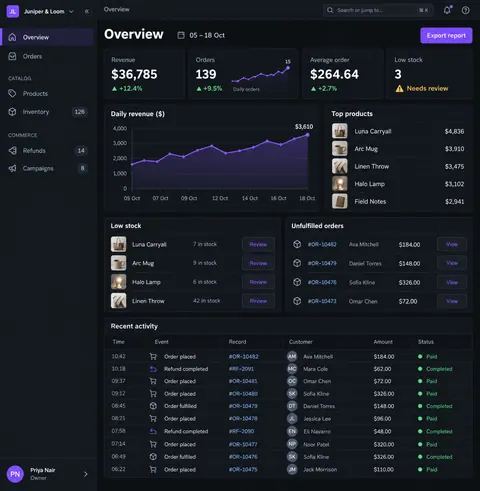
Veyra Commerce
Web11 screens
A dark admin dashboard for a small online brand: revenue, inventory, orders, refunds and campaigns.
Make one like thisAI app design · reviewed by you
Describe your app in a sentence. DesAIgner plans the screens and shows you the price. Once you approve, it draws a consistent set for mobile, tablet, desktop, watch or web, with a flow map, and cut-out assets when you ask.
No card needed. Nothing is drawn until you approve the plan and its cost.

Real DesAIgner output: Veyra Commerce (web), PulseForge and Menumint (mobile). Cropped for layout.
Demo
A real project, from a one-line idea to a clickable prototype and an export.
Real DesAIgner session, sped up. No sound.
How it works
Eight steps. Nothing is drawn until you approve the plan and its cost.
Write a sentence or two, pick a platform and add style hints if you have them. Leave screens on Auto and the plan decides how many the app needs, or set 2 to 12 yourself.
You get an improved brief, a design system, an art direction picked for your domain, every screen with its type and purpose, and the flows between them.
Rename, add or remove screens, change their types and edit the flows. The estimate updates as you go, and nothing is drawn until you approve.
A single board lays out every screen first, so layout, colour and components are settled once for the whole app.
Each screen is drawn at full size from the board, at the device’s real proportions, with the same navigation and art direction. Shared facts carry over: Northstar Analytics is $18,400 MRR and 24 of 30 seats wherever it appears.
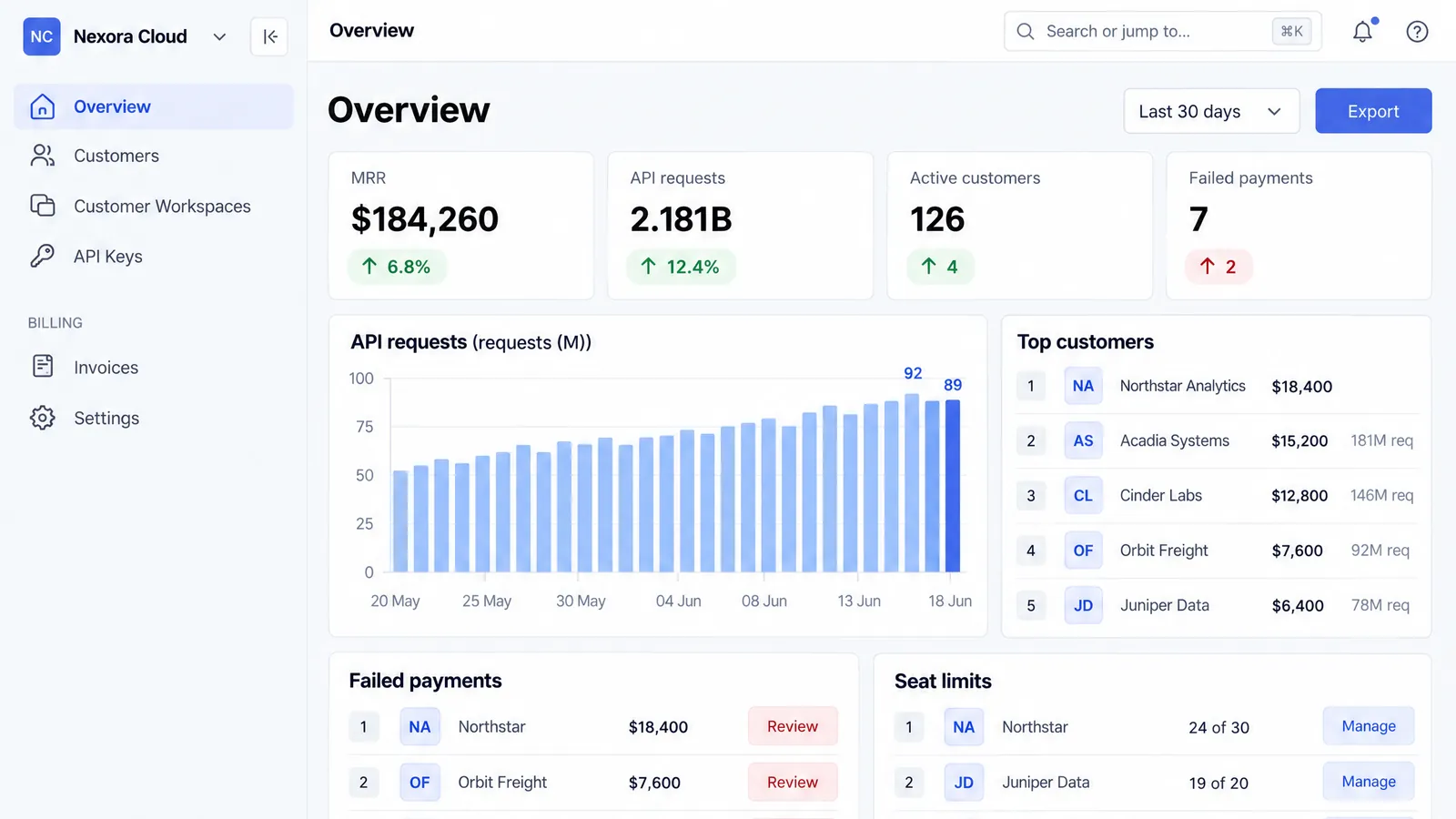

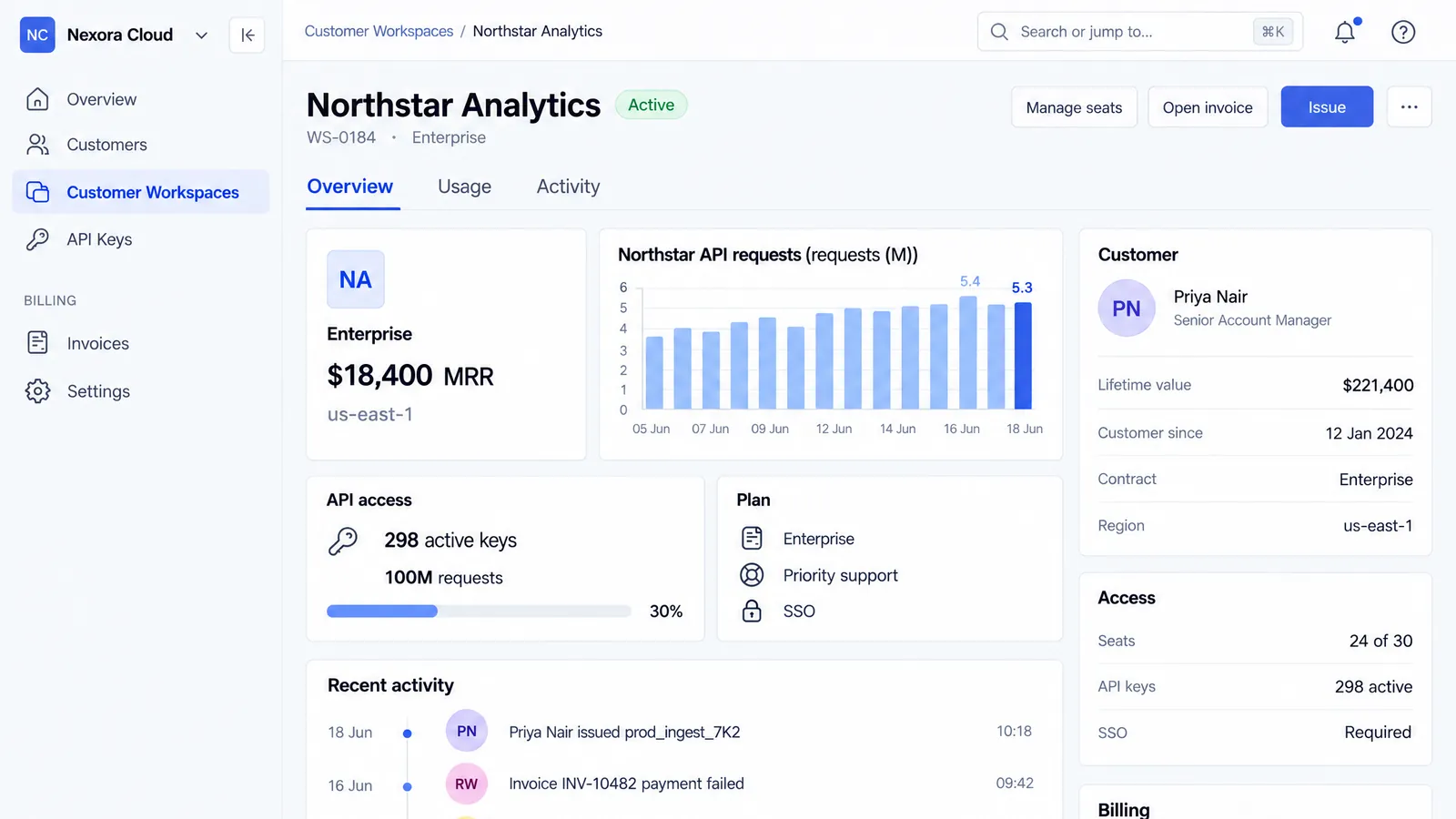

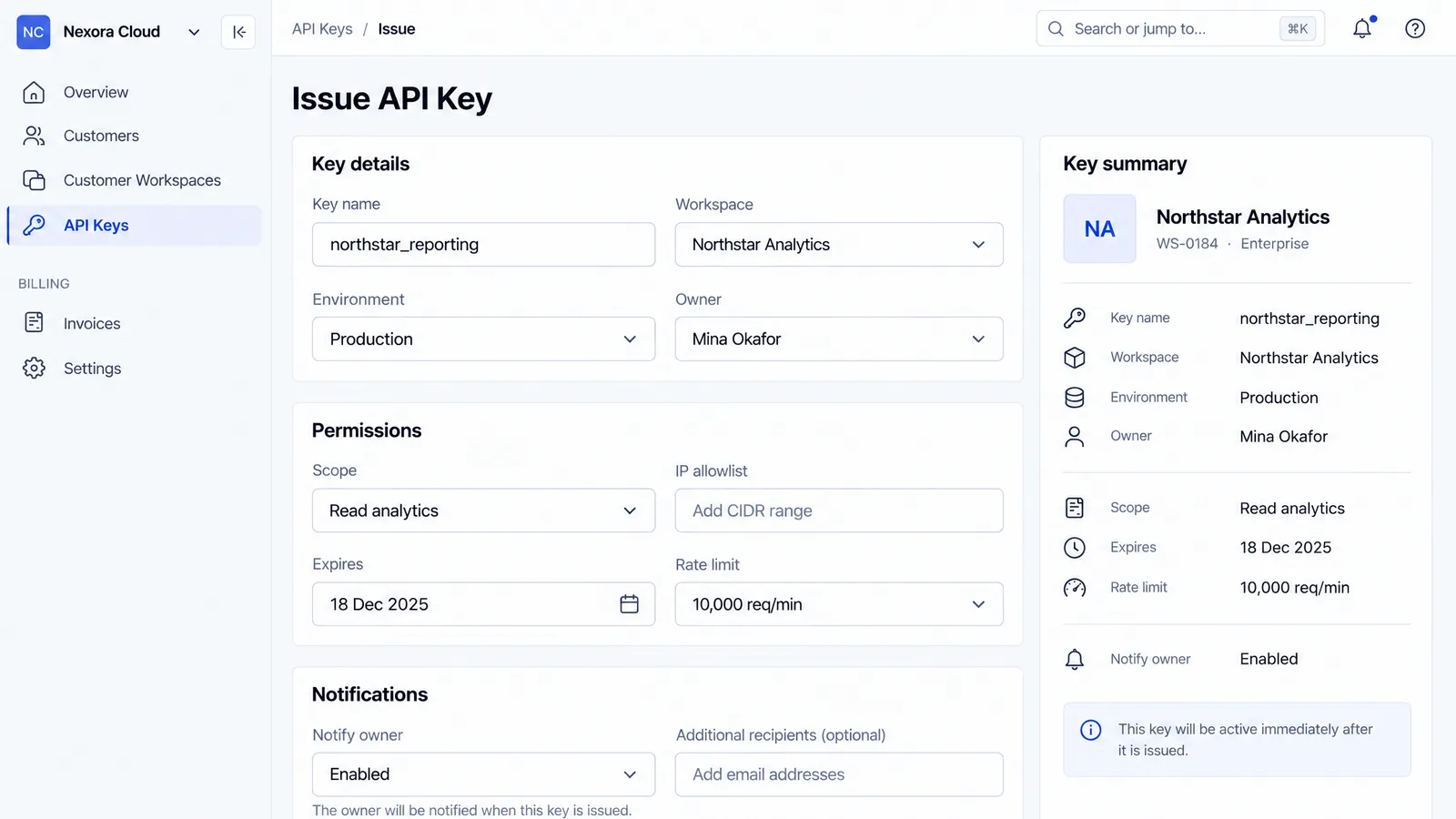
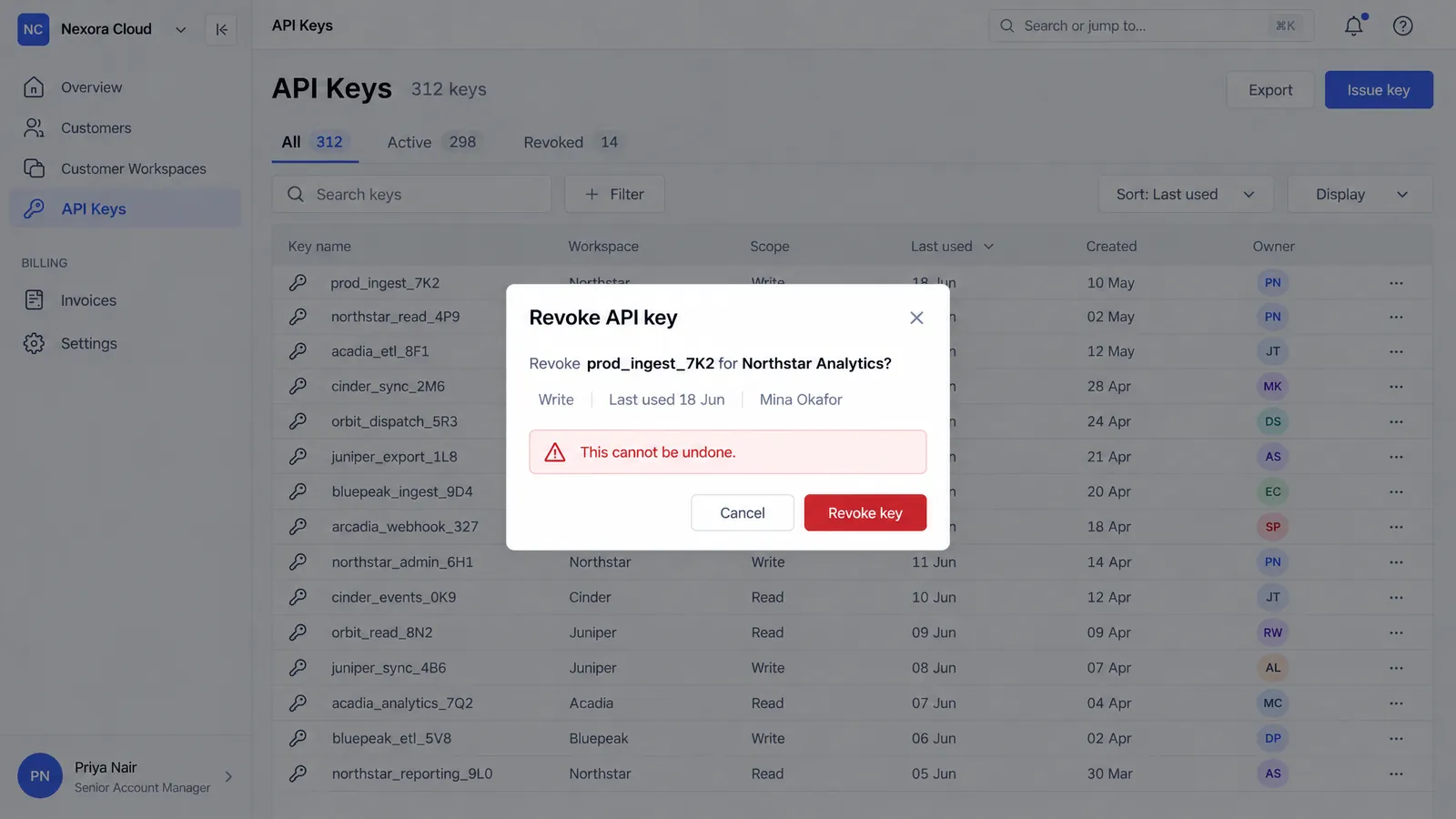
Top of each page shown. Web pages are drawn full length.
Screens sit on an interactive map with labelled connections, zoom, pan and a minimap. Open any screen in a zoomable viewer, regenerate it on its own, or switch to the list view.
Overview
Customers
Northstar Analytics
Issue API Key
Find assets on a screen and see what it found and what it costs. Then generate only the ones you pick, as transparent PNGs, named and sorted into folders.
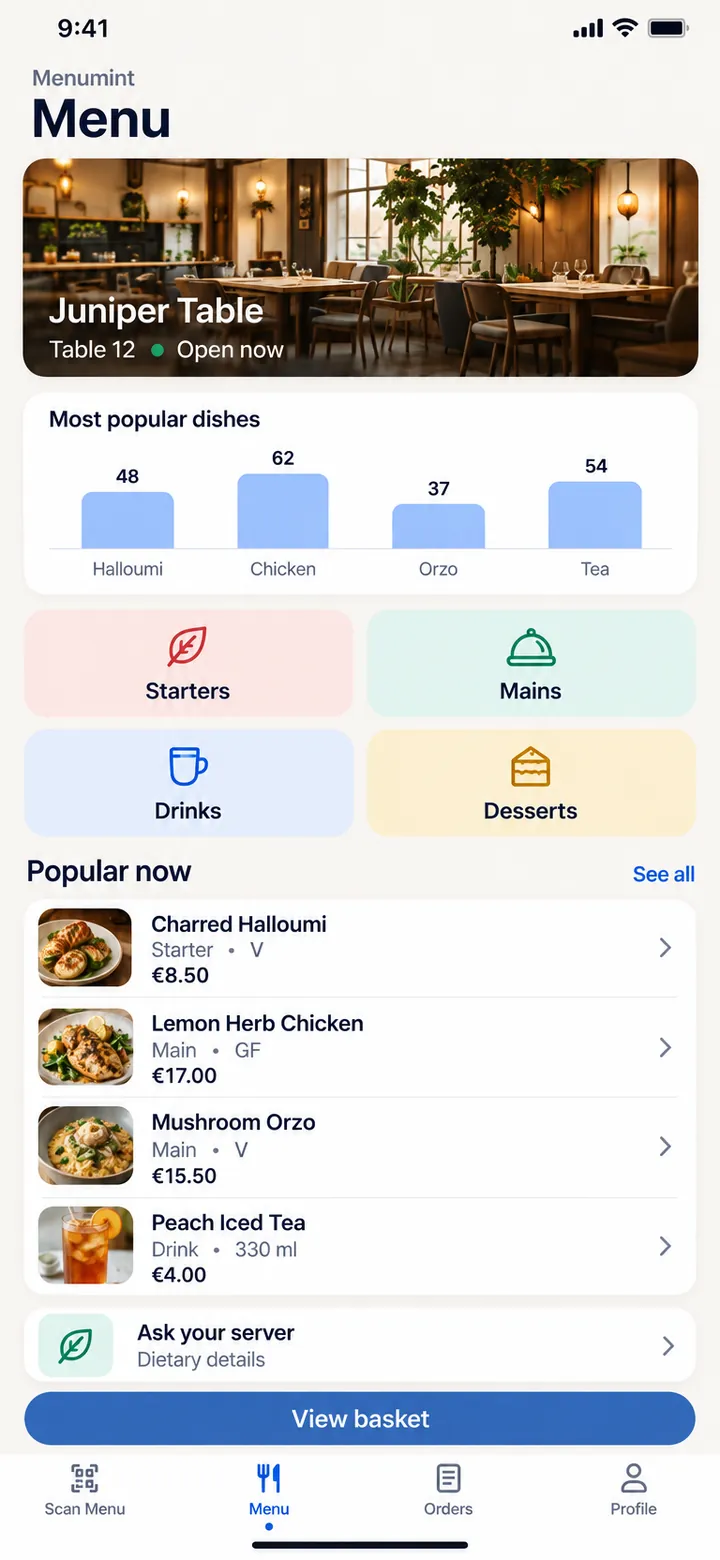








Download the board, the screens in order and the assets you generated, plus brief.md, design-system.json and flows.json. Hand it to a developer or drop it into a deck.
Examples
Real projects made with DesAIgner. Open one, click through it, or make your own.
A dark admin dashboard for a small online brand: revenue, inventory, orders, refunds and campaigns.
Make one like this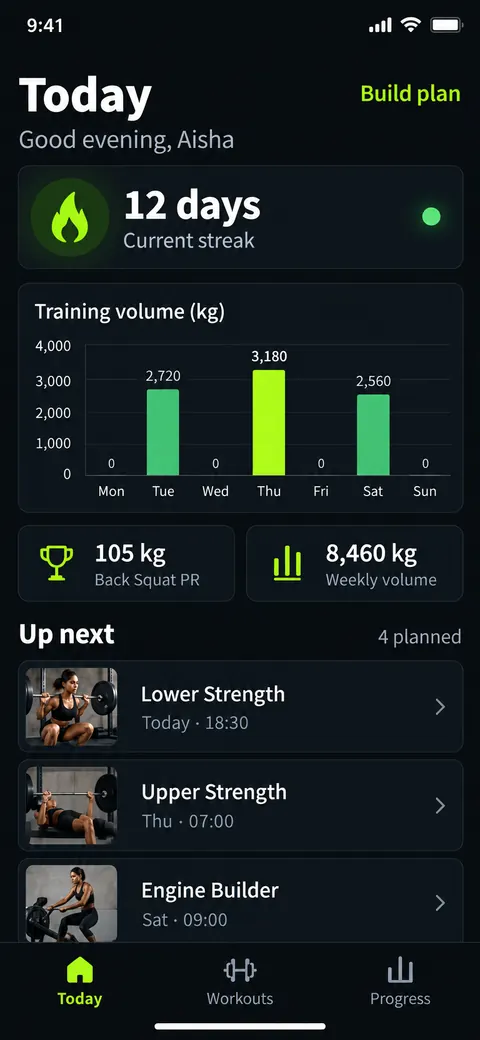
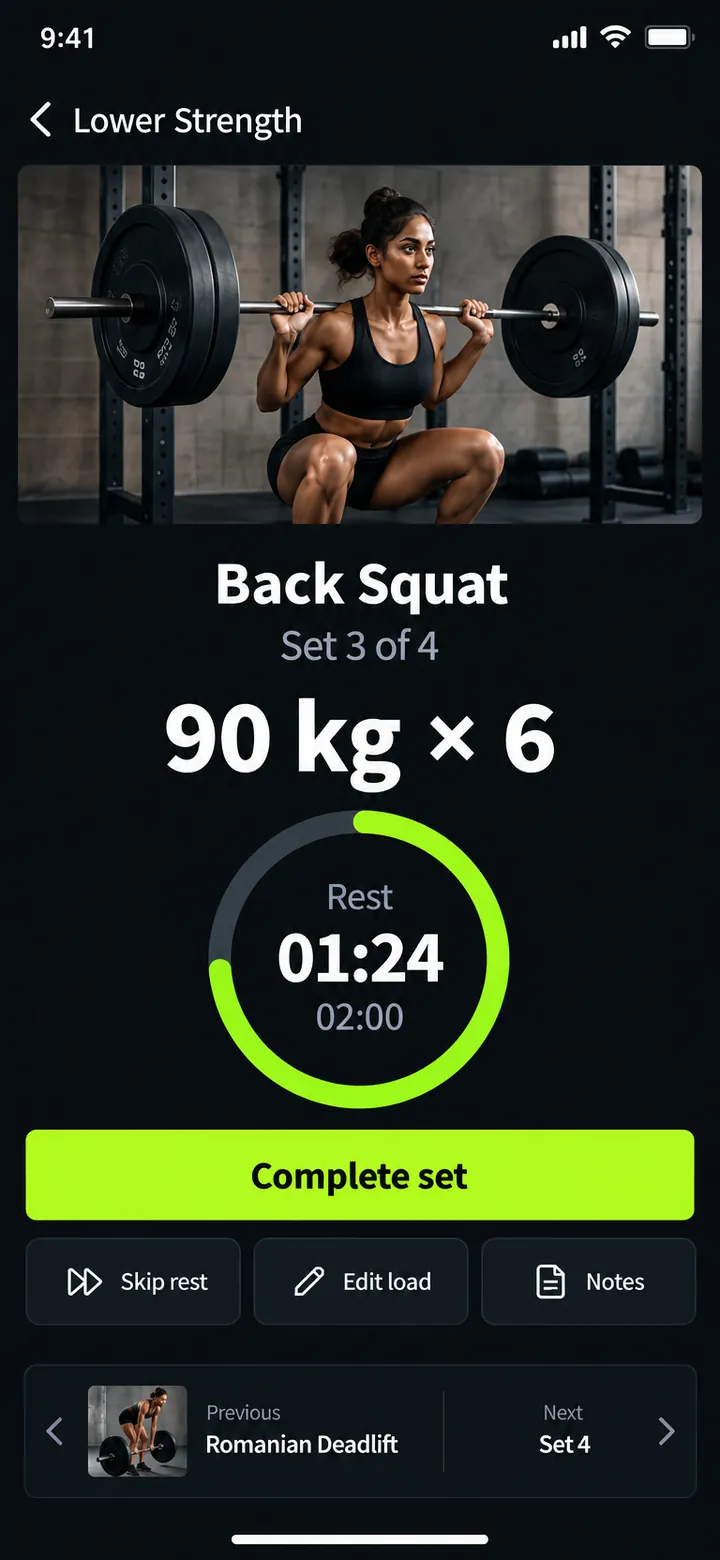
A personal fitness app that plans workouts and tracks progress.
Make one like this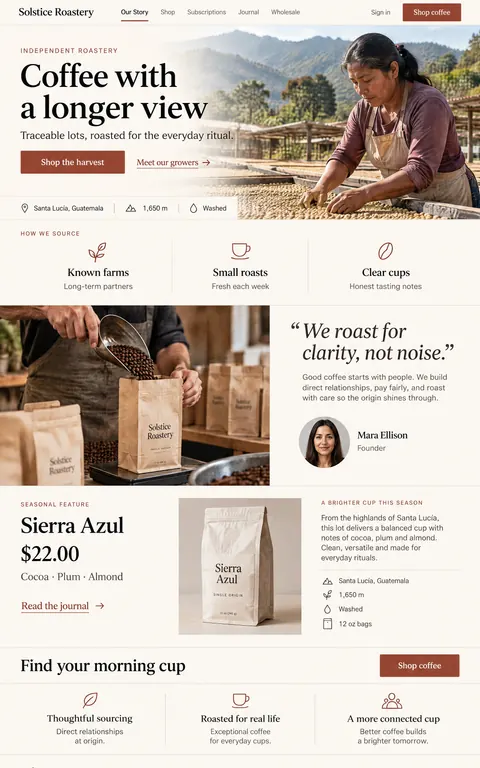
A warm, editorial website for an independent coffee roastery, from origin story to wholesale.
Make one like this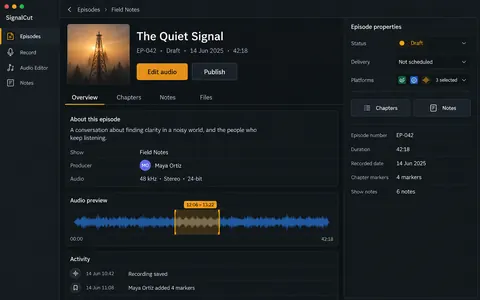
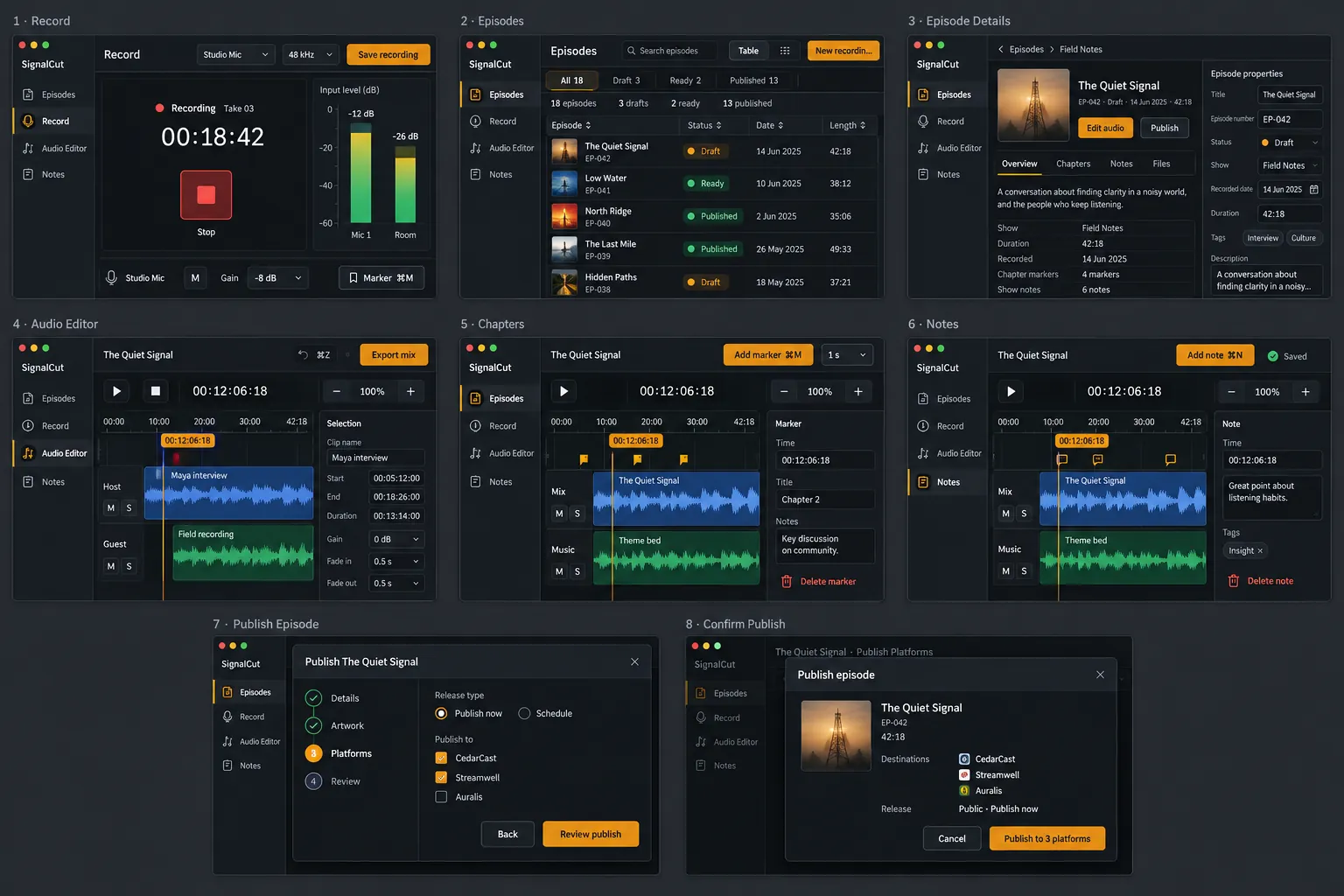
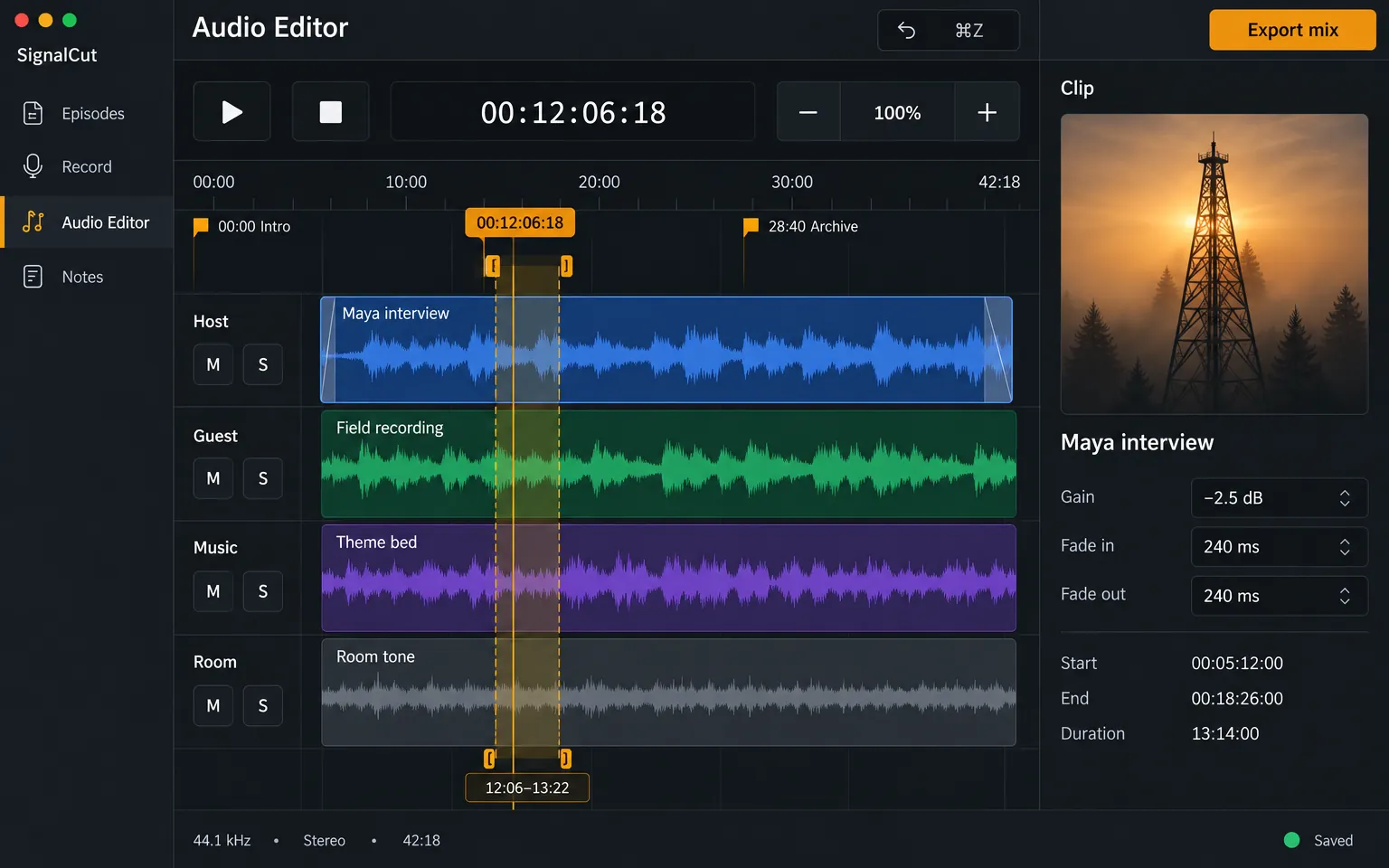
A desktop studio for podcast producers: record, edit the waveform, add chapters and publish.
Make one like this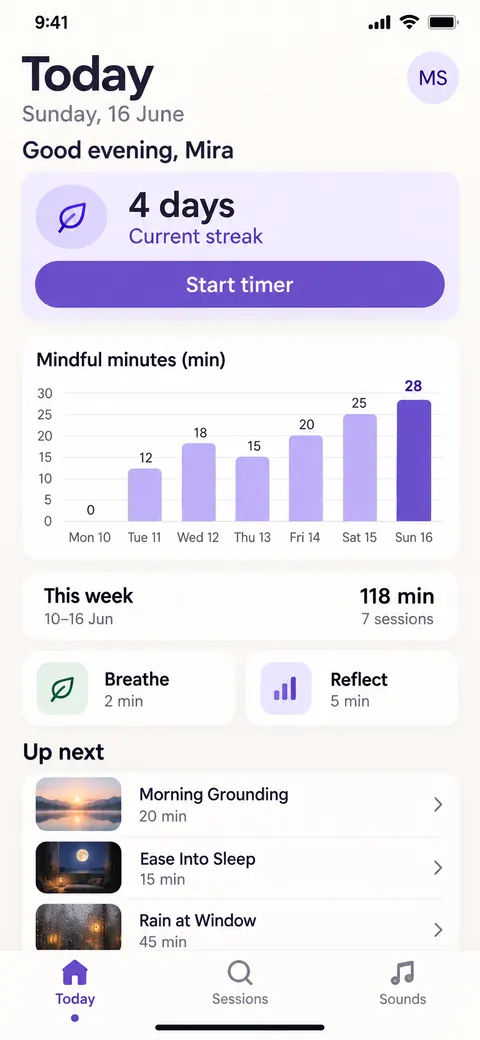
A calm meditation timer with guided sessions, ambient sounds and a gentle weekly summary.
Make one like this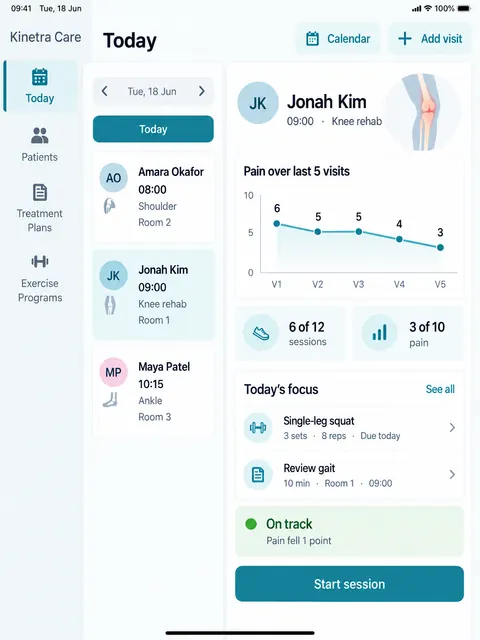
A clinical tablet app for physiotherapists: today's appointments, patients and treatment plans.
Make one like thisFeatures
Every screen is drawn from one board, with the same navigation and one art direction chosen for your domain.
The plan is a checkpoint. Edit the brief, screens and flows. Nothing is drawn until you approve.
The review shows what the run costs. Asset scans and batch generations show their price before they start.
Every screen and asset is its own item. Regenerate or retry one, and the rest stay as they are.
Phones at 9:19.5 and desktop windows at 16:10. Web apps get a sidebar, websites get top navigation, and pages run full length.
Every ZIP has brief.md, design-system.json and flows.json. Screens with code also export to React + Tailwind and Figma. Or send a link and collect comments.
Who it’s for
You can build it. Get consistent screens and transparent assets, named and foldered, ready for your codebase.
An overview board and a flow map for a pitch deck or a user test, with the price shown before you spend.
A first pass for client concept rounds, with a brief, a design system and flows to hand off.
Try a direction across a whole app before you open your design tool. You get images, not layered files.
Pricing
Every step has a fixed credit price, shown before it runs: a 6-screen mobile app is about 45 credits, a 12-screen web app about 95, and each asset 1 credit. An edit or a variant costs the same as its screen, and code export is 12 credits per screen. Failed generations are refunded.
$0
No card needed. Credits last 30 days.
50 credits to try
$29per month
Monthly. Cancel anytime.
450 credits / month
$99per month
Monthly. Cancel anytime.
1,700 credits / month
Credit pack. On Pro or Studio, add 250 credits for $19 at any time. Pack credits last 12 months. Not available on Free.
What costs what, in credits: Plan 10 (11 with your logo or screenshots) · Overview board 5 · App screen 5 · Web page 5–8 · Edit or variant: same as its screen · Code export 12 per screen, React and Figma included · Find assets 2 per screen · Asset 1
Prices in USD, before tax. Paid checkout isn’t available yet: every button creates your account.
Failed generations don’t use credits: they’re refunded automatically. The plan review shows the exact credits for your run before you approve.
Free credits are a one-time grant and expire after 30 days. Credit packs are available on Pro and Studio only.
An improved brief, a design system, an overview board, one full-size image per screen and a flow map of how they connect. Transparent asset PNGs are extra, for the screens you choose. Everything exports as one ZIP.
Yes, in Figma. Once a screen has code, you can download it as a Figma import file and bring it in with the DesAIgner Figma plugin: frames with real text, colour variables and prototype links. It’s a close, editable rebuild, not a pixel copy. The original designs stay PNG images, and there’s no vector export.
Mobile, Tablet, Desktop, Watch and Web. Desktop means an application window. Web means a page in a browser. Each follows its platform’s conventions and proportions.
Leave it on Auto and the plan decides, usually 3 to 8, or set an exact number from 2 to 12. You can add or remove screens before anything is drawn. The maximum is 12 per project.
Yes, until you approve it: the brief, screen names, purposes, types, key UI elements and flows. Once drawing starts the plan is locked, but you can still regenerate any single screen.
That’s what the pipeline is built for. The overview board is drawn first and every screen uses it as a reference, with the same navigation and art direction. If one screen drifts, regenerate just that one.
Icons, illustrations, logos, images, buttons and backgrounds from a screen, each as its own PNG. Find assets lists up to 12 per screen. You pick which to generate. All are transparent except backgrounds, which are opaque by design.
Yes, once a screen is done. Describe a change in up to 500 characters and the screen is redrawn with it. The new version becomes current, and every earlier version stays in History, where going back is free. Variants give you 2 or 3 alternative layouts that keep the navigation and design system, and you pick one. Each edit or variant costs the same as the screen: 5 credits for an app screen, 5 to 8 for a web page. Changing a screen’s current version removes the assets made from it.
Yes. Any finished screen exports as HTML and CSS: semantic markup, real text, your design system as CSS variables and the screen’s own pictures. There are no scripts, and you can compare a preview side by side with the design. It’s a close starting point, not a pixel-perfect copy. Code export is 12 credits per screen, for one screen or all of them, and takes one to two minutes per screen. Once a screen has code, you can also download it as a React + Tailwind project or import it into Figma, at no extra cost.
Yes. When you create a project, add your brand colours, font names, a logo and up to 3 reference screenshots (PNG, JPEG or WebP, up to 4 MB each). The plan builds its design system around them, the screenshots guide the look but never the content, and your logo is given to the image model to place in the designs. Colours and fonts cost nothing extra. A plan that uses your logo or screenshots is 11 credits instead of 10. You can change your style until you approve the plan.
Yes. Create a share link for a project and send it: anyone with the link sees the finished screens and the flow, a presentation and the clickable prototype, without an account. You choose what each link shows, and can add a password or an expiry date, allow image downloads and turn it off at any time. Turn comments on and visitors can leave feedback on a screen, pinned to a spot if they like. You answer in your project, and we email you about new comments, at most once per project every 10 minutes. Sharing costs no credits. On Free, shared pages show a small “Made with DesAIgner” badge.
In credits. Every step has a fixed credit price that you see before it runs. Planning a project is 10 credits, and the plan review shows the exact credits for the whole run before you approve. Edits, variants, code exports, asset scans and batch generations show their price before they start.
The unit every generation is priced in. A plan is 10 credits, or 11 when it uses your logo or screenshots. The overview board is 5, an app screen 5, a web page 5 to 8 depending on its length, finding assets 2 per screen, and each asset 1. An edit or a variant costs the same as its screen, and code export is 12 credits per screen. Regenerating a step costs the same as running it.
Yes, on Pro or Studio: add 250 credits for $19 at any time. Packs aren’t available on the Free plan. Pack credits last 12 months.
On Pro, unused monthly credits roll over for one month. On Studio, for three. Free credits expire 30 days after sign-up.
You keep your plan until the end of the current period, and the credits you already have stay usable until they expire. No new monthly credits are added after that.
Exports carry a small “Made with DesAIgner” mark whenever no paid plan is in effect: on Free, and after a paid plan ends, even with credits left. Exports made while Pro or Studio is active have none. To remove it, choose a paid plan and export again.
Retry just that screen or asset. You don’t redo the project. Failed generations never use credits: the credits held for them are refunded automatically.
Only your account, until you share a project with a link: then anyone who has that link can see what you chose to share, until you turn the link off or it expires. To generate the designs, your idea and plan are sent to our AI model provider. Comments on shared links are not.